03 / AFTER THE TRIP

Turn the records
into a travel journal.

Choose posts and spots from the private timeline, insert them into the article, and add your own text. Preview the saved journal, then decide whether to keep it private or publish it.

  • Select material from itinerary items, posts, spots, images, and maps
  • Edit and save the article, then preview it before publishing
  • Keep it private or publish it at a shareable URL
FINISHED TRAVEL JOURNAL / PHOTOS + MAP
A finished Kanazawa travel journal with a photo timeline and map

01 TRAVEL GUIDE

Share a route worth following.

Turn an itinerary into an article with your reasons for choosing the stops and tips for enjoying them. Edit the title, introduction, cover, and body before, during, or after the trip.

Published itinerary articles appear in Explore and can be read without signing in. Allow itinerary copying if you want others to use the route for their own trips. Publishing and copying permission are your choices.

When published journals are available, the article shows a count and an expandable list. Read the original trip’s journal by the author and journals from trips made with itinerary copying.

ITINERARY COPY / YOUR NEXT TRIP
A Kanazawa itinerary article with three stops and reasons for choosing the route

02 SELECT MATERIAL

Choose only the records you want in the journal.

The insert panel lets you choose itinerary items, posts by day, spots you actually visited, images, and maps. For a daily timeline, set its start and end, maximum item count, and anything you want to leave out.

A place that remained only in the plan is not mixed into the visited-spot or map choices. You decide which part of the private record should appear in the article.

MATERIAL PICKER / POSTS + SPOTS + MAPS
Selecting posts from a daily timeline before inserting them into a travel journal

03 EDIT

Insert the records and add the story around them.

Insert a selected timeline or map wherever it belongs in the article. Add headings and paragraphs around it, then edit the title, summary, article language, and cover image.

Save explicitly with the Save button or Cmd/Ctrl+S. You can load an earlier saved version, and while changes remain unsaved, previewing and publishing stay unavailable.

Keep editing a draft of your journal or travel guide after publishing. Preview it, then choose Update published content to share your changes.

EDITOR / INSERTED TIMELINE + ARTICLE TEXT
A travel-journal editor with a title, summary, and inserted timeline in the article body

04 PREVIEW

Preview the saved article before publishing.

An inserted timeline renders its posts, photos, and spots in the order you selected. A map shows the selected spots and located posts as pins in visit order.

Choose an image size, alt text, and caption, and decide whether a spot card should show its address, photos, official site, or menu. Review the result as a reader would see it, then return to editing when needed.

PREVIEW / TIMELINE + PHOTOS + MAP
A preview showing a photo timeline and map inside a travel journal

05 PUBLISH

A published journal gets a URL and appears in search.

A journal can remain private and still be complete as a record for yourself. If you publish it, it gets a shareable URL and appears in the public journal list and title-and-summary search.

You can make it private again later. Personal spot notes and anything you did not insert into the article are not automatically exposed on the public page.

Changes to included itinerary details, places, photos, and other source materials also appear in the published article.

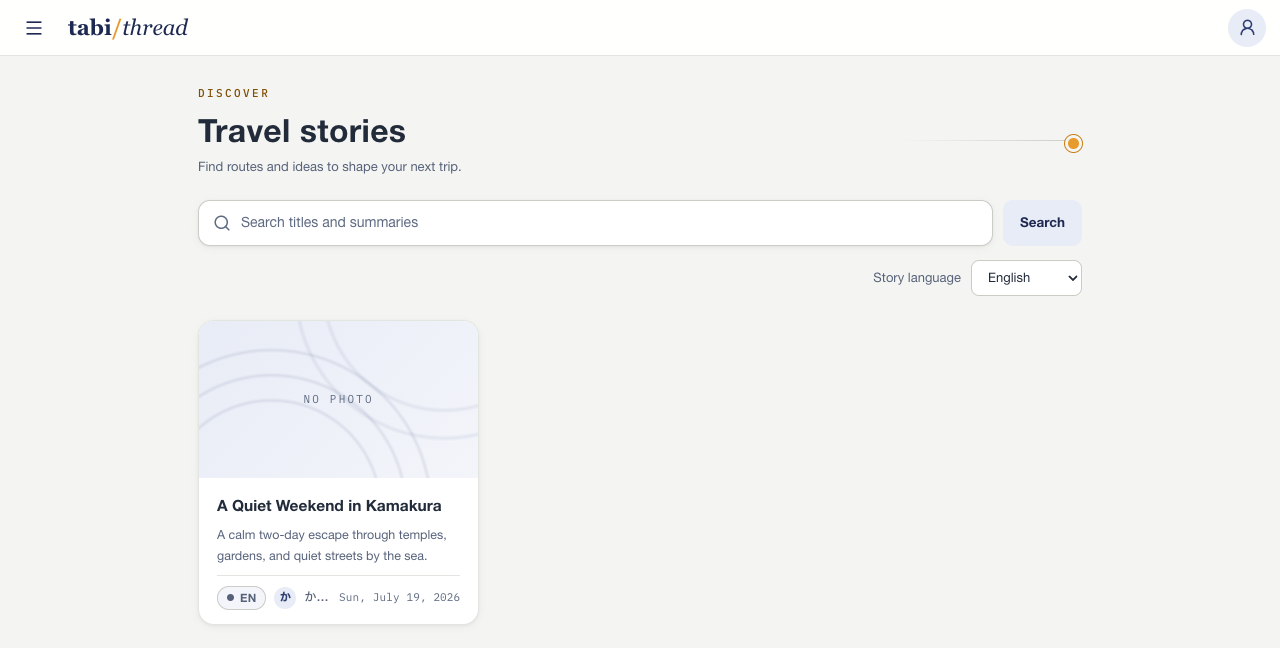
PUBLISHED JOURNALS / LIST + SEARCH
A public travel-journal list with title and summary search and published journal cards

Turn your next solo trip into one continuous thread.

Log in

Log in with your email address, Google account, or Apple Account.